

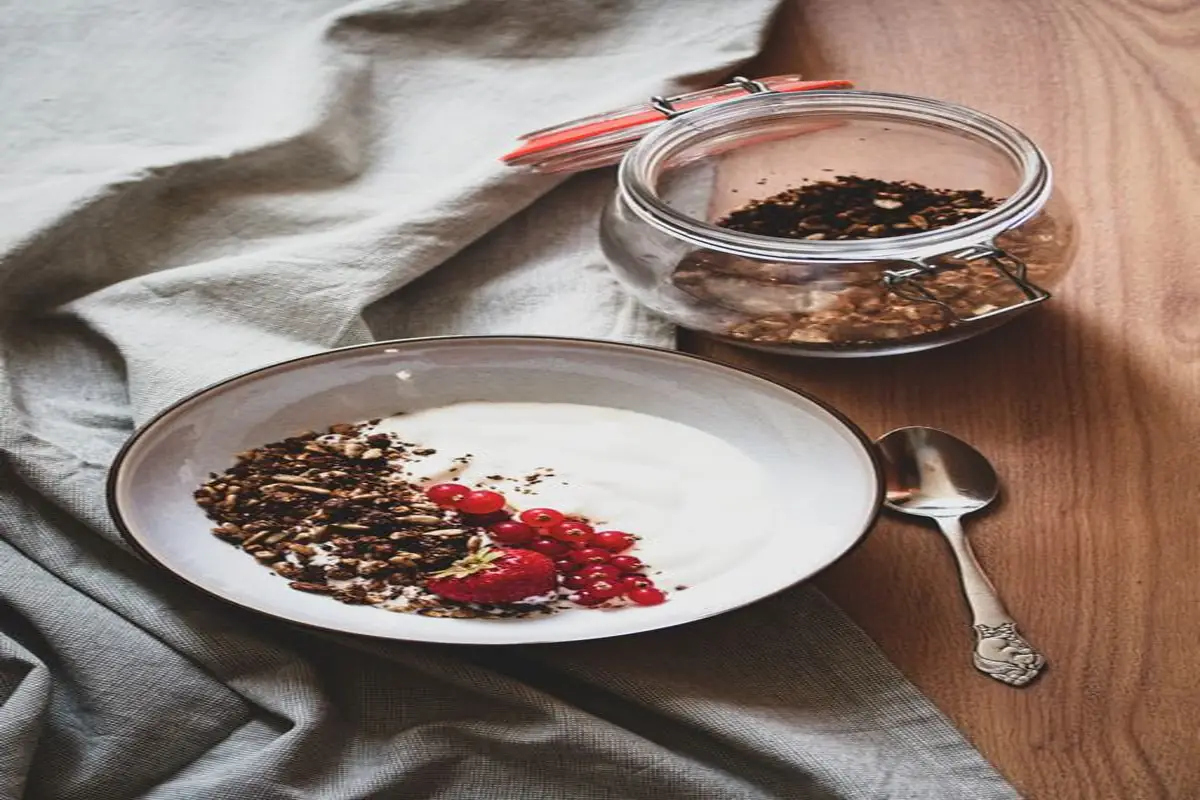
Plan Shop Visuals
Sellers: describe a product, consider square framing, and outline the listing composition in AI Image Studio.
Ideas
- Ceramics
- Stationery
- Jewelry
- Textiles
Illustrative planning exercises, not generated deliverables.
Use AI Image Studio to outline a product composition. Describe a ceramic bowl, the surface beneath it and lighting. Consider a square frame, then decide which details belong in the image and which belong in accompanying copy.

Give an idea a visible subject in AI Image Studio. For an article about urban gardens, describe a balcony planter against nearby buildings. Specify the palette and framing so your brief explains the intended picture without promising an image result.

Plan the still composition of a video opening in AI Image Studio. Describe the subject position and background before thinking about motion. The homepage provides the video planning entrance; moving between pages does not transfer an image or start a job.
Start with the subject and where it belongs in the frame. A ceramic bowl beside folded linen needs different surroundings from a portrait against a plain wall. In AI Image Studio, describe those relationships in your prompt, then consider the displayed image settings. Nano Banana 2 is the default configuration, with resolution set to 1K and aspect ratio set to auto. Use the planning pass to distinguish the subject, background, light and empty space. For example, specify whether a lamp sits near the left edge or fills the center. This page focuses on a still composition. For an idea defined by movement over time, the video planning entrance is on the homepage.

Consider written detail, frame shape and reference intention as separate parts of the image brief. For each choice, ask what a viewer should notice first, what belongs behind it, and which detail can be removed without changing the intended picture.
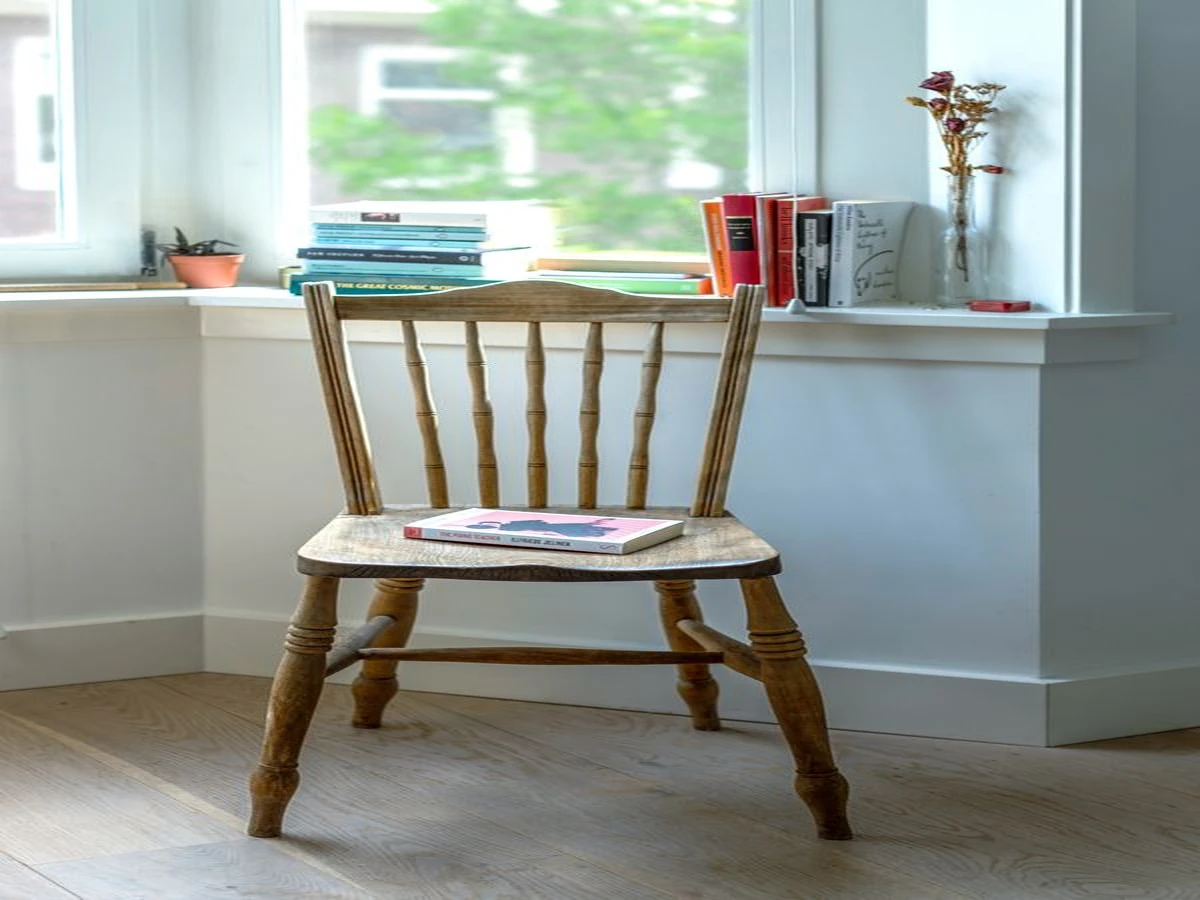
Use AI Image Studio to describe a subject within its surroundings. For a reading corner, name the chair, window light and space between objects.
Subject
Name the object or person.
Light
Describe direction and softness.
Background
Specify what surrounds the subject.
Connect each setting to a deliberate composition choice. A setting describes the planned frame; your prompt describes its contents. Check that both point toward the same picture before continuing.
Begin with the default image configuration when planning the subject and its surroundings.
The default resolution is 1K. Treat it as a configuration value, not a rendered result.
Use the AI Image Studio prompt to describe position, lighting and background together.
Consider a square arrangement for a product, symbol or centrally placed subject.
Consider a wide arrangement when the surroundings need space beside the subject.
Consider an upright arrangement for a portrait or a vertically shaped object.
Illustrative planning exercises for distinct visual needs. Choose the example closest to your intended task.
Sellers: describe a product, consider square framing, and outline the listing composition in AI Image Studio.
Editors: describe an article's visual subject, choose wide framing, and define an illustration brief.
Teachers: describe a lesson object, consider its framing, and draft a visual explanation.
Game writers: describe a location, consider landscape framing, and outline its visual atmosphere.

Organizers: describe an event motif, consider portrait framing, and prepare a poster brief.
Hobbyists: describe a remembered place, consider composition, and draft a keepsake illustration brief.
AI Image Studio records preview interest without rendering an image. Review your written brief before using the action.
Enter your subject, arrangement and lighting. Keep the intended composition clear.
Check the selected model, resolution and frame shape against your written brief.
Use the preview action to express interest. It does not create or queue an image.
Clarify the picture you want to plan and the actions this preview supports. Keep configuration choices separate from delivered image expectations.
This is Everygen AI's still-image planning preview at everygenai.net. AI Image Studio provides a prompt and image configuration for exploring a composition, with Nano Banana 2 selected by default. Describe the subject, arrangement and light. The homepage handles video planning separately; similar product names elsewhere do not establish affiliation.
Use this preview to work out an image brief. It does not provide a working canvas for retouching your photographs, adjusting their pixels or exporting edited files. If your task requires changes to an existing file, use an editing workflow that actually supports those operations. Here, keep the focus on describing the intended composition.
No. Personal upload fields are hidden, and the preview does not generate images or save creations. Nano Banana 2's underlying configuration defines up to 6 optional reference images, but that is not upload access here. You can describe what a reference would contribute without submitting photographs or expecting a processed result.
The default Nano Banana 2 configuration starts at 1K resolution with auto aspect ratio. Defined frame choices include 1:1, 16:9, 9:16, 4:3, 3:4, 3:2, 2:3 and 21:9. Settings depend on the selected model. These configuration values describe the proposed task; they do not demonstrate output quality or grant generation access.
Checkout is unavailable. Published Free, Basic, Pro and Business tiers are proposed preview configurations, with monthly, yearly and one-time structures on the pricing page. Their prices and credit fields are displayed proposals, not evidence of payment access, issued credits or working image generation. No account purchase is completed through this preview.
This preview creates no image files to license or download. A model label, illustrative use case or proposed tier does not establish commercial-use permission. For later production, check the applicable service terms, model conditions and rights to source material. Questions about this preview can be directed to support@everygenai.net.
Start with ordinary visual details: the subject, its position, the background and the light. In AI Image Studio, a brief such as a red chair beside a north-facing window gives you a concrete composition to consider. Add details that change the intended picture, and remove contradictory directions before reviewing the settings.
Explore motion after a still composition.

AI Image Studio: Give Your Picture a Clear Brief
Plan a product composition, illustration or opening-frame concept through prompts and framing choices. For sellers and visual storytellers, this preview starts with Nano Banana 2 and its 1K default setting.
0 / 20000