
Everygen AI
Video ideas start with a scene.

Everygen AI Video Studio: Generate Shorts, Social Clips and Product Ads

For short-form creators and solo marketers: explore prompts for product reveals, moving portraits and story scenes, then choose from three frame formats.

Explore Image Ideas

Need a Still Image for Your Story?

Some ideas start with a single frame. Explore the image entrance in Everygen AI when subject placement, lighting or a product arrangement matters more than motion.

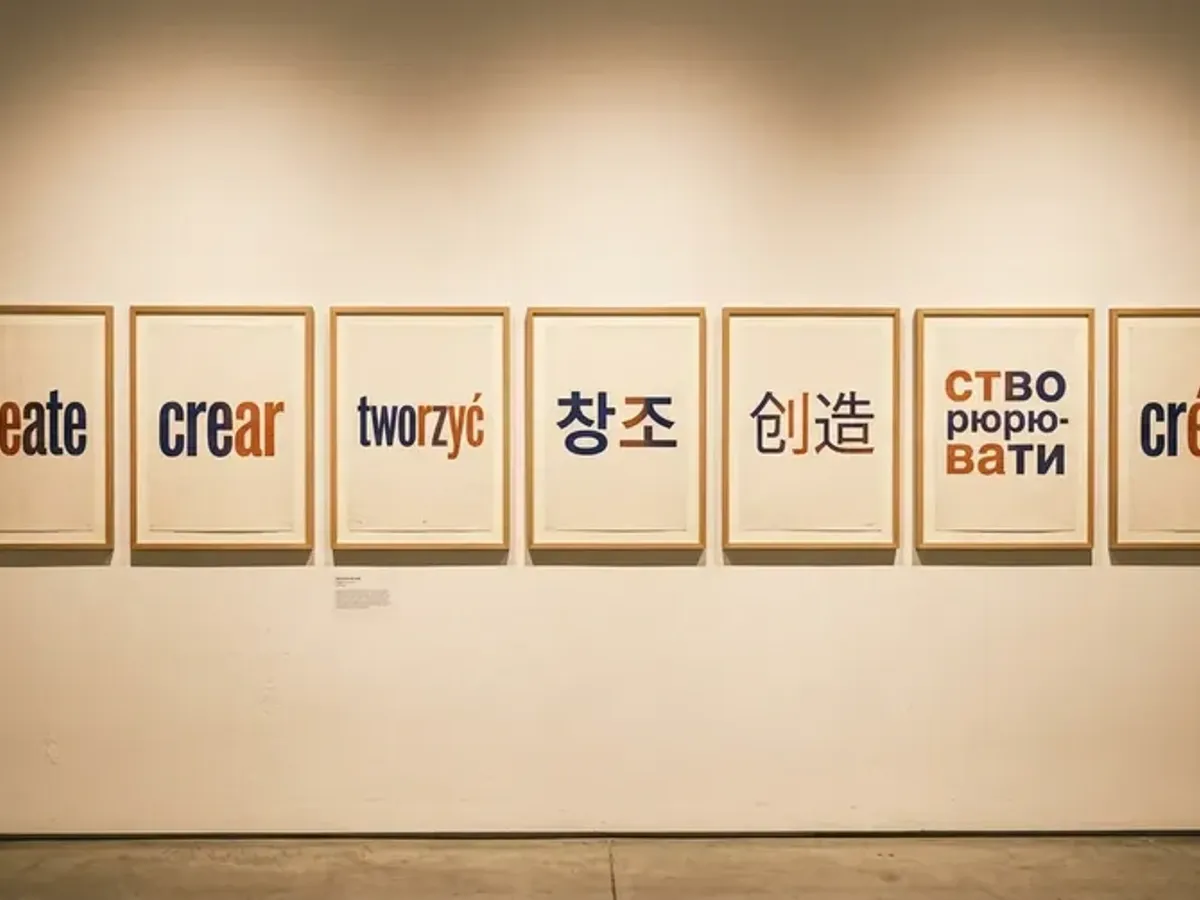
Everygen AI third-party composition reference: Framed typography on a gallery wall
01 / 01

AI Image Studio

Work out the composition of a shop visual, an article illustration or a possible opening frame. AI Image Studio brings image prompts and settings into a separate workspace, so your still-image idea has its own starting point.

How Your Idea Takes Shape in Everygen AI

A useful scene starts with a subject and something it does. Think of an animated character stepping across a beach: its movement, the camera distance and the space around it each change the story. In Everygen AI, a text-led setup starts with a written description. A reference-frame setup starts from an intended composition and asks what should move within it. Use the prompt to describe direction, mood and camera movement, then explore the frame and duration settings. The default text-led configuration starts at 720p and 5 seconds. Adjust the configuration to suit the action you have in mind. For a static composition, follow the image-workspace entrance. The beach animation beside this explanation is a third-party visual reference.

Everygen AI third-party animated boy dancing on a beach

Choose Your Starting Point with Everygen AI

Explore video configurations or a separate image workspace in Everygen AI. Choose the starting point that fits your scene, then shape its subject, movement and composition.

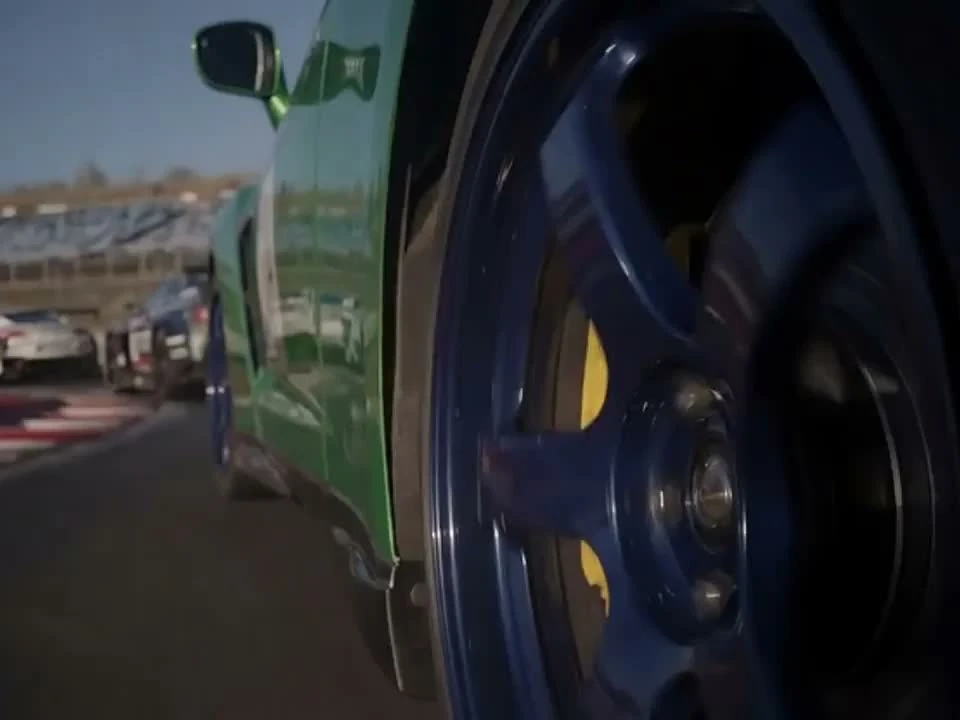
Everygen AI third-party low-angle scene of a moving car wheel

Give the Action a Clear Direction

When motion leads your idea, start with words. In Everygen AI, describe a wheel passing a low camera, then explore the pace and framing.

Planning Details

  • Subject in Motion

    Describe the wheel and road, keeping the details visible.

  • Camera Position

    Write a low tracking view or a fixed roadside view into the prompt.

  • Frame and Duration

    Explore the frame and duration controls to keep the scene focused on one action.

What You Can Explore in Everygen AI

Move from an open-ended idea to specific scene choices. Start with the controls that matter to your story.

01Prompts

A Starting Prompt

Open the template library when the blank box feels unhelpful. Choose a scene, then replace its subject and action with your own idea.

02Models

A Choice of Configuration

The model picker groups available configurations. Compare the controls shown for your selection; options differ between models and modes.

03Motion

Direction in Your Words

Describe a subject turning, a camera moving closer or a fixed view. Keep subject motion separate from camera motion in your prompt.

04Framing

Three Frame Formats

The default text-led setup offers 16:9, 9:16 and 1:1. Explore a wide scene, an upright subject or a centered composition.

05Duration

Room for One Action

Explore the duration controls with a single action in mind. A brief gesture needs a different scene description from a longer camera move.

06Resolution

Resolution as a Setting

Review the resolution shown for the selected configuration. Consider the detail your composition needs alongside its framing and intended use.

Take Your First Steps in Everygen AI

Bring a scene of your own. Work from the subject and action to the camera direction and settings.

  1. 01
    Step

    1. Pick or Write a Prompt

    Open Templates for a starting scene, or type your own. Name the subject and action before adding atmosphere.

  2. 02
    Step

    2. Explore the Configuration

    Choose the mode and review its displayed controls. Try a frame shape, then check the duration and resolution options.

  3. 03
    Step

    3. Refine Your Scene

    Read your prompt alongside the settings. Remove conflicting directions and keep the main action clear.